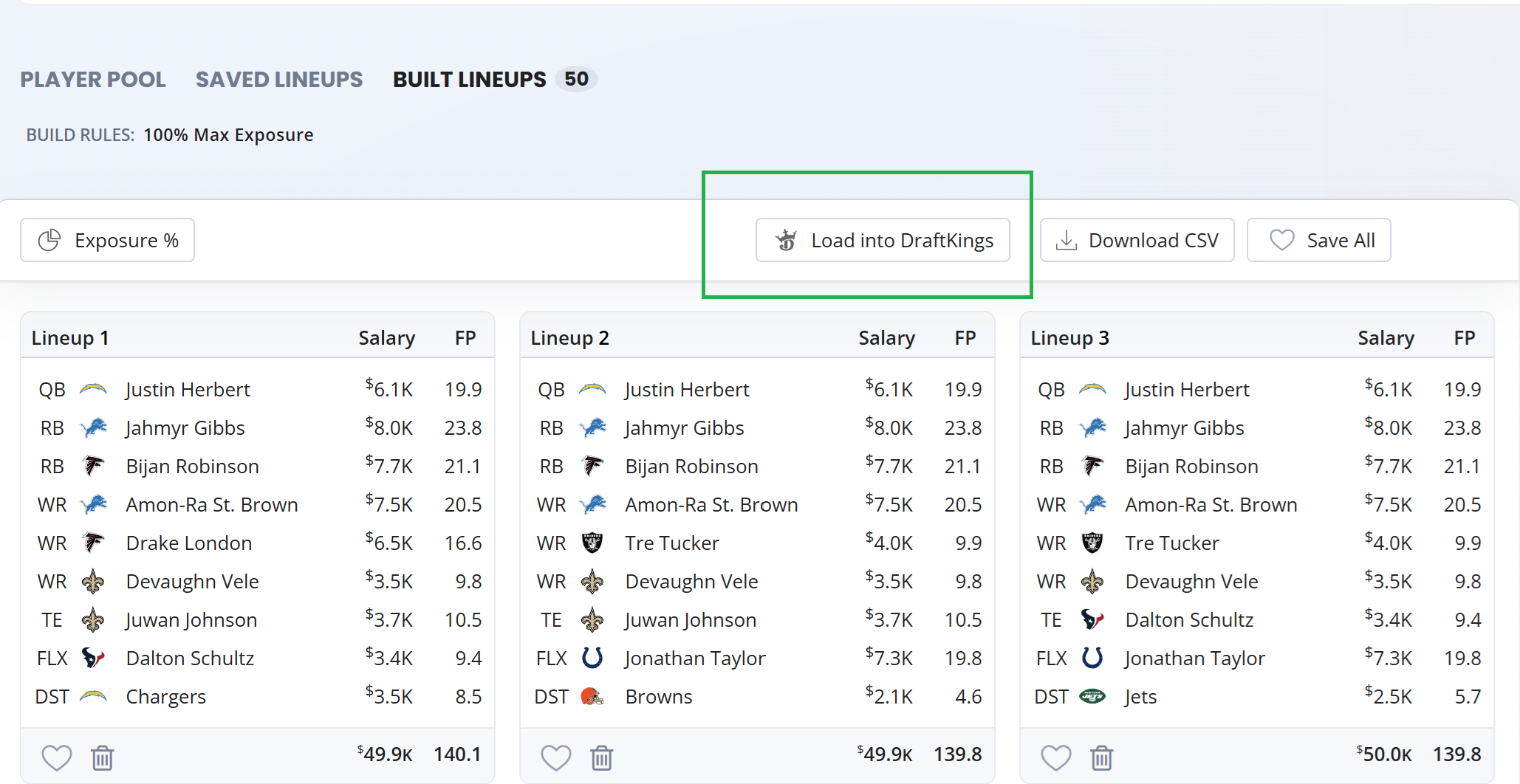
You can upload lineups into DraftKings in just a few easy steps, either from a fresh optimzer build or from a saved collection of lineups.
Step 1:
Click on the 'Load into DraftKings' button from either the 'Built Lineups' or 'Saved Lineups' tabs.
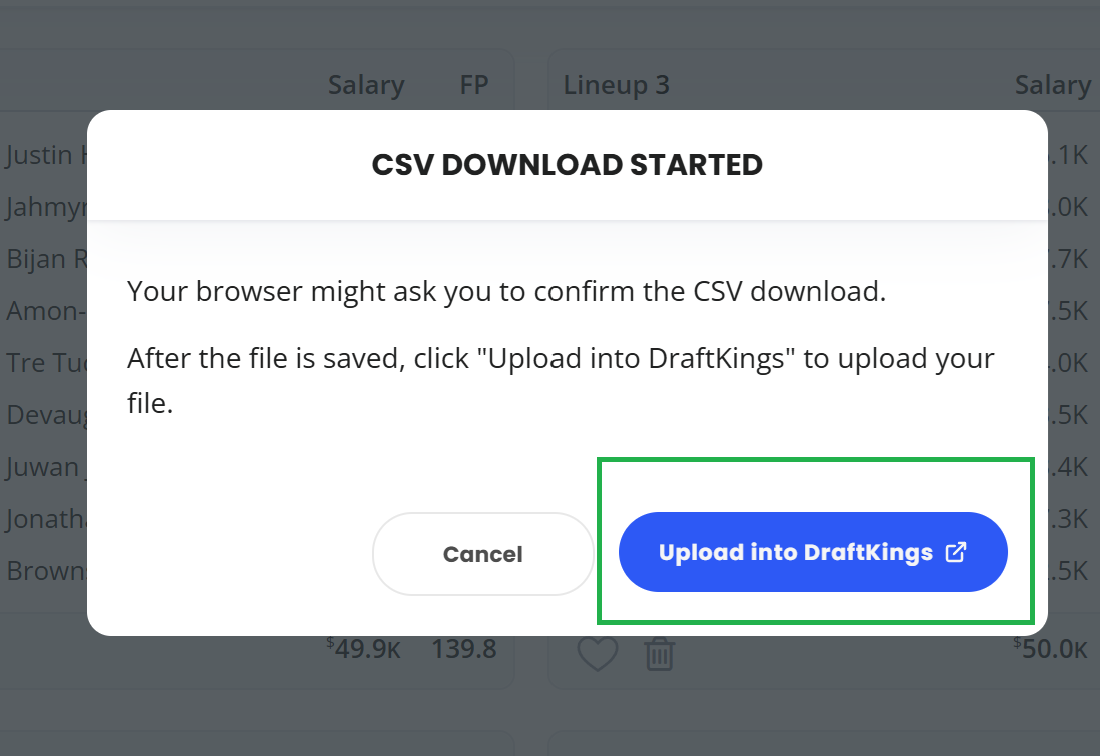
This will trigger a .csv file download to begin. Depending on your browser you might have to click 'ok' within your browser to grant permission to download the lineups file.
Step 2:
Once the download is complete, hit 'Upload into DrafKings' on the popup that is shown onscreen. This will take you to the DraftKings Daily Fantasy website. You can also go here manually at any time by going to draftkings.com/lineups/upload. It is only the website and not the app which has the functionality to upload lineups.
Step 3:
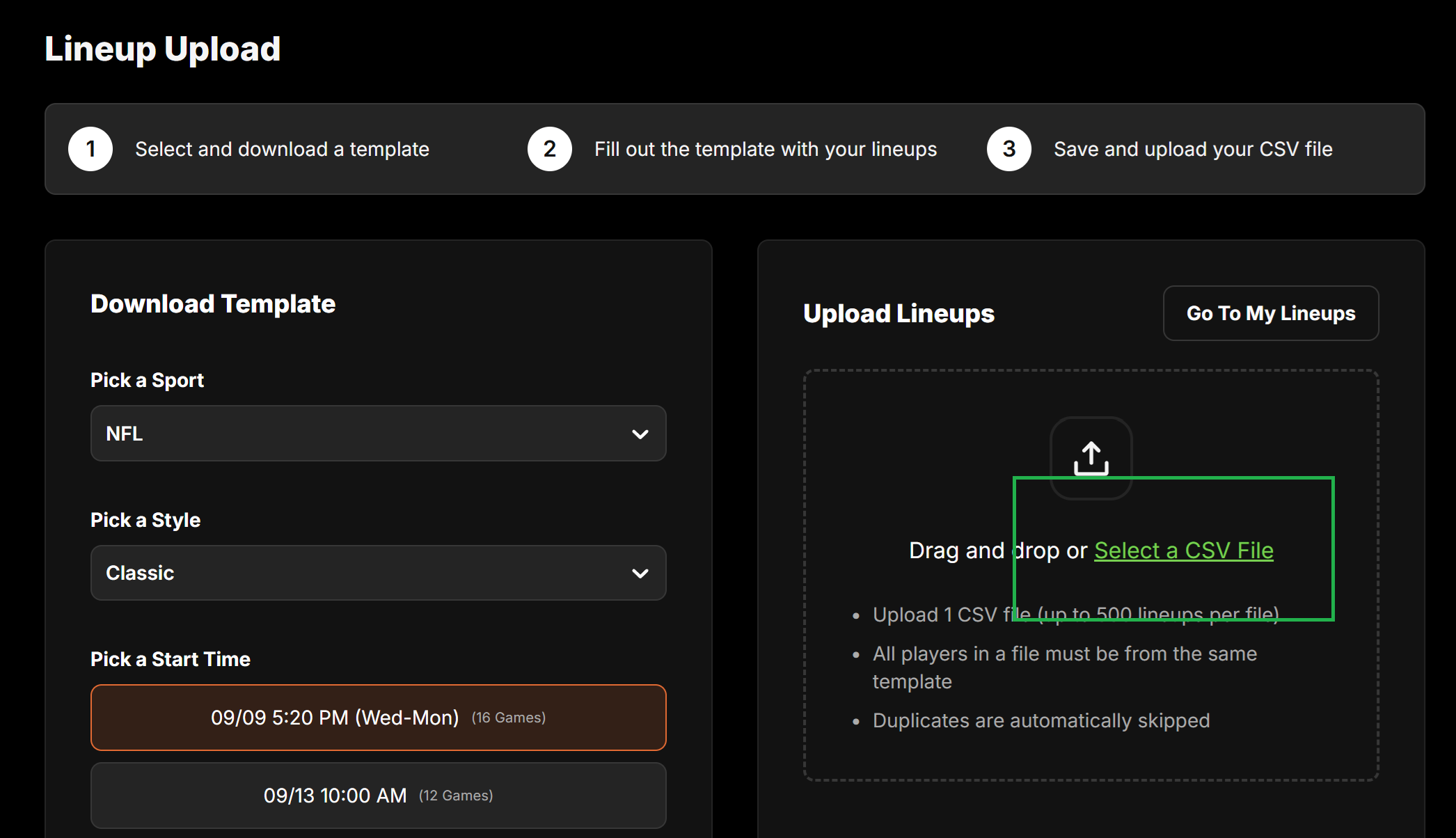
You might be asked to login to DraftKings if you haven't recently been on the site. After you login, you'll be redirected to the 'Upload Lineups' page. Click on the 'Select a CSV File' link, and it will prompt you to select a file. Find the file that was downloaded in Step 1 to now upload that into DraftKings.
Step 4:
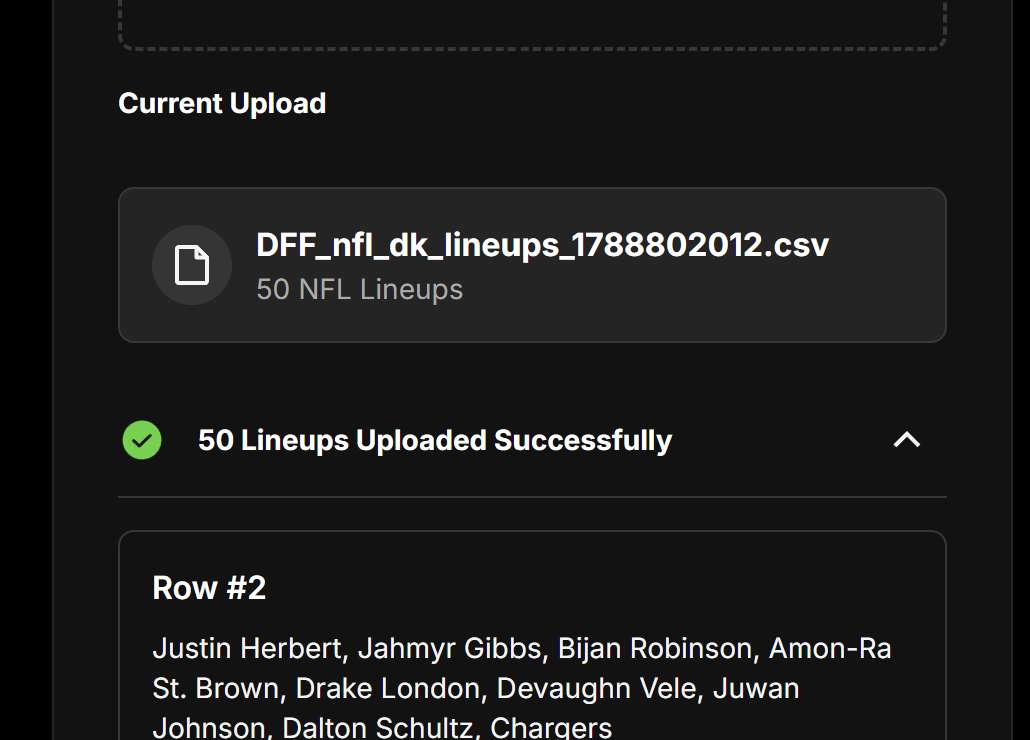
If the upload was succesful, you'll see a confirmation shown of how many lineups DraftKings was able to import.
Step 5:
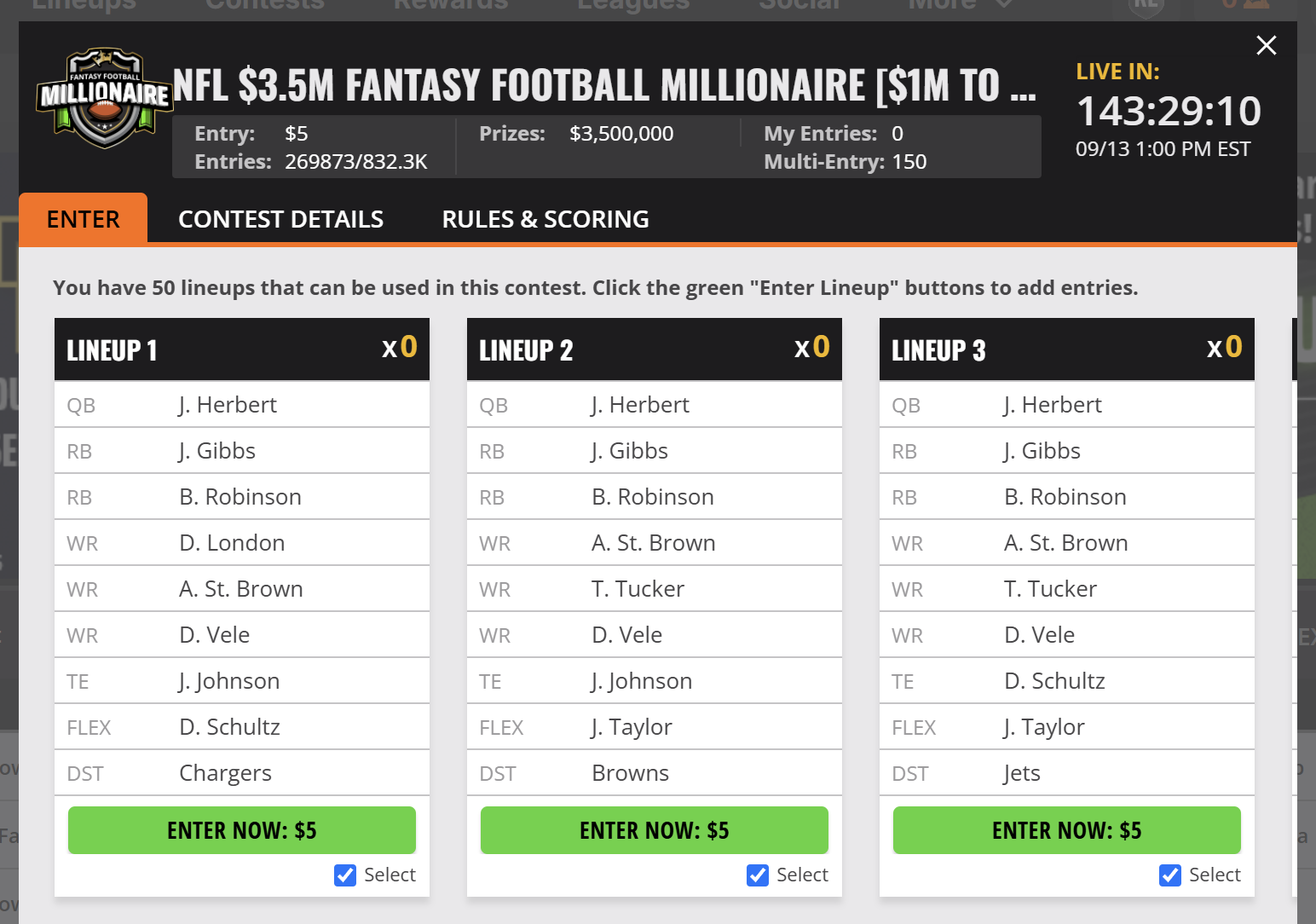
Navigate to the lobby screen of any contest. From the lobby screen you will be shown the list of lineups that were imported, and you can at this point choose to enter them.