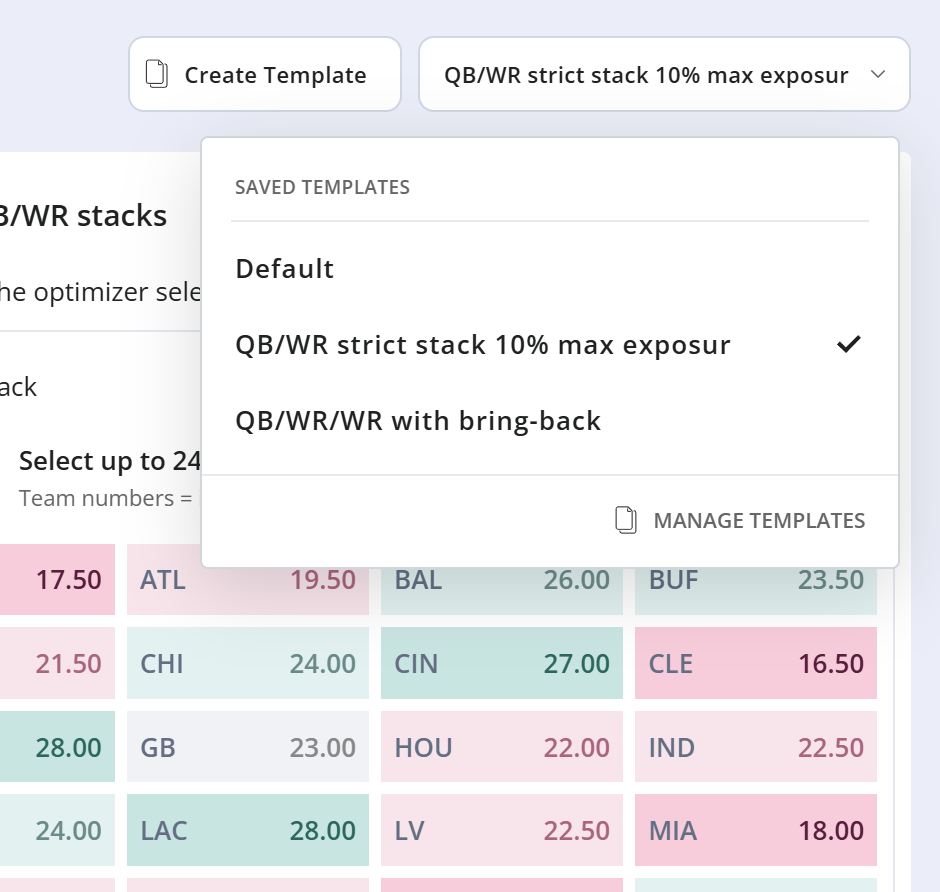
With all the build rules settings now available in the optimizer, we make it easy to save them so you can quickly reuse those settings again (either when coming back to the site, or in another similar slate).
Build Rules Templates allow you to save almost all the build rules settings to a template, which you can then pick from a dropdown to instantly reload. You can save multiple templates and give them different names, to enable quickly switching between the different settings and seeing how it impacts or changes builds.
How to setup and save build rules templates:
Step 1:
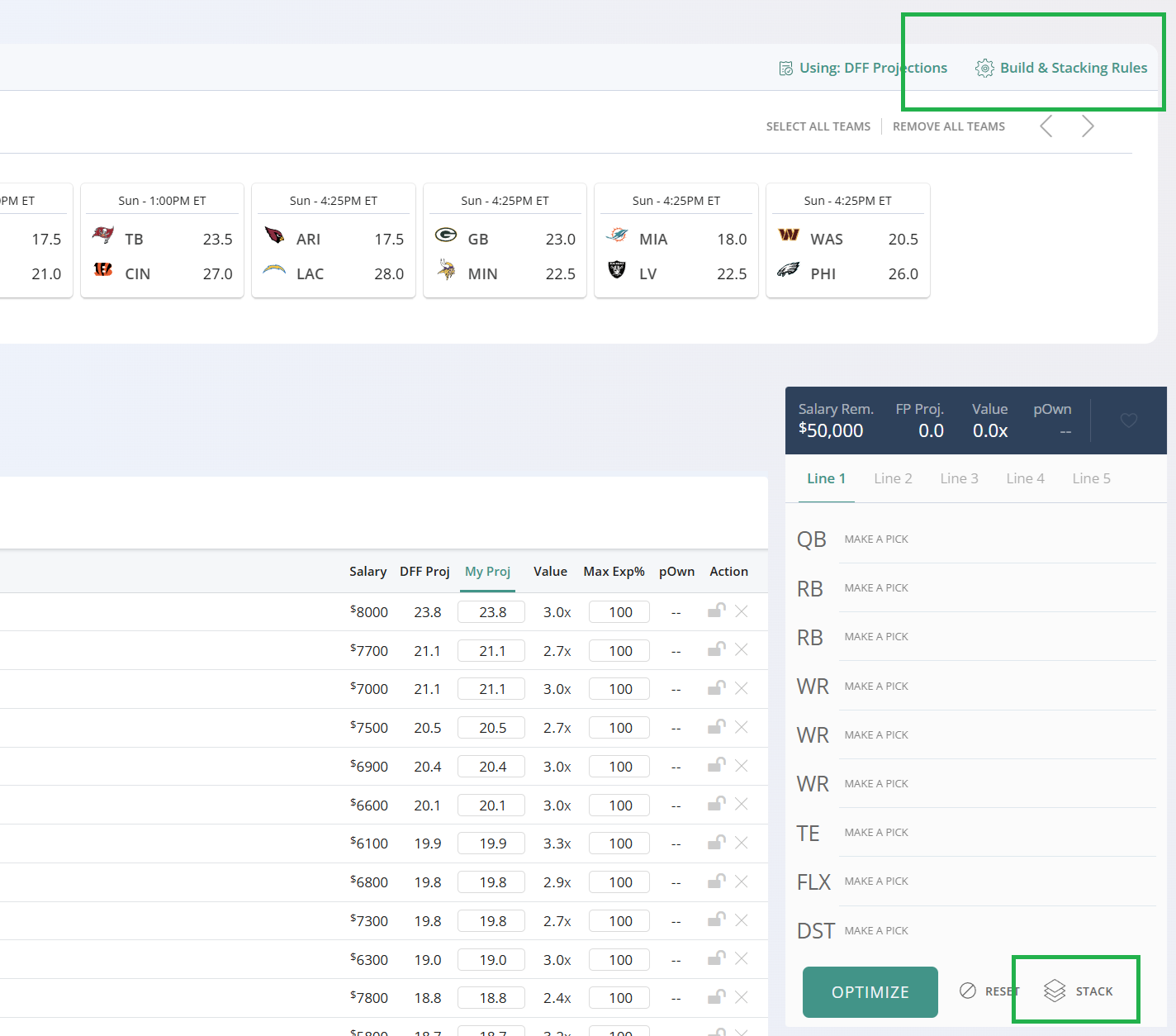
Go to the build rules menu, either through clicking 'Build & Stacking Rules' or 'Stack'.
Step 2:
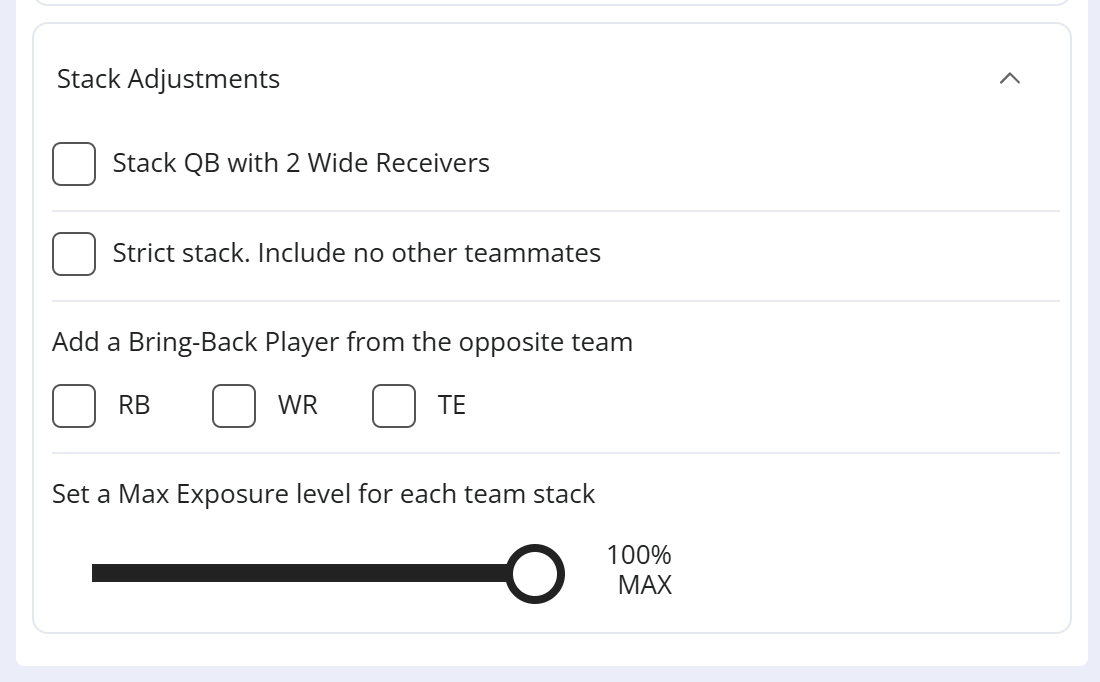
Adjust the different options. The only thing that will not get saved in a template are the specific teams in a stack. This is because the templates are meant to be reusable on different slates, so if we saved the specific teams, they might not be available in a different slate (ie, main slate vs afternoon slate). But everything else that is not tied to a specific team will be saved.
Step 3:
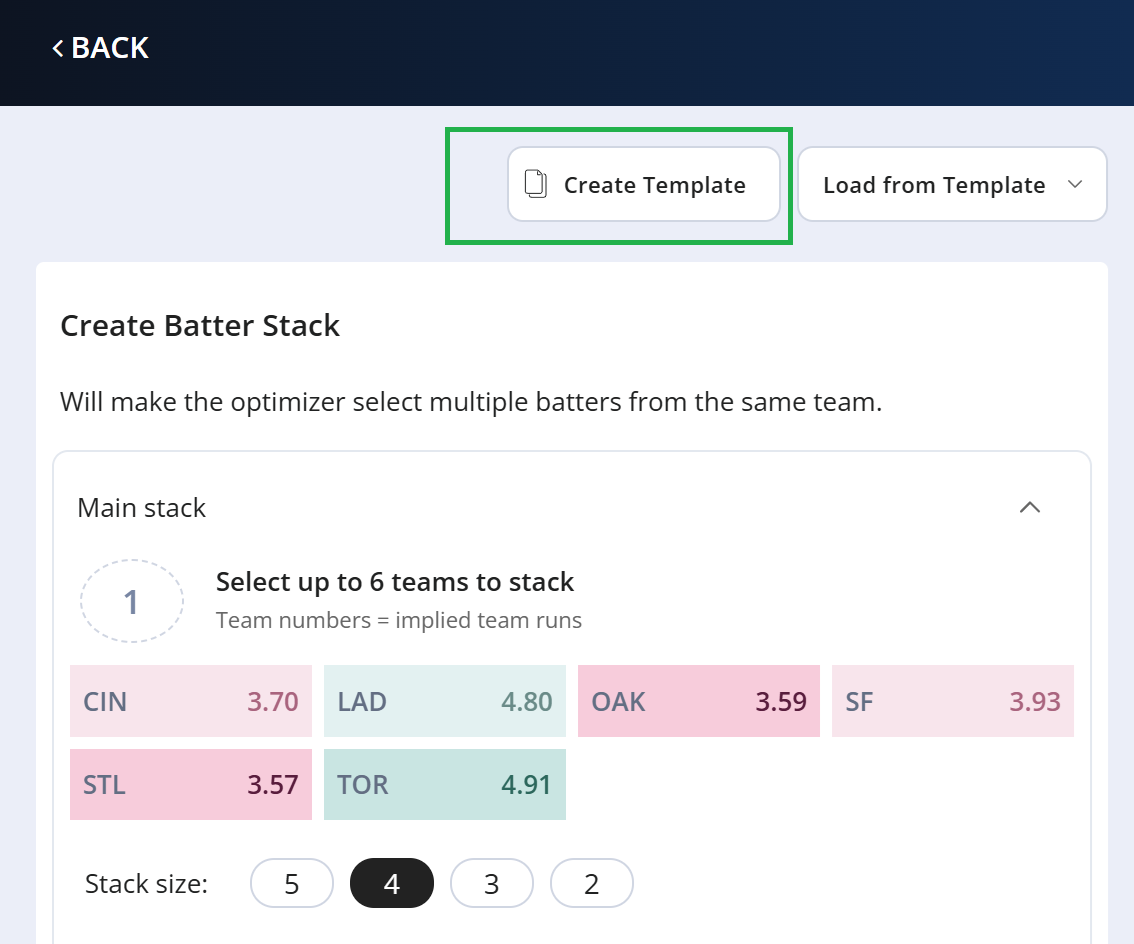
Click on 'Create Template' once you've adjusted all your settings. This will open up a popup that will allow you to enter a custom name for this template (something easy to remember), before clicking to save it.
Templates are saved to your account, so if you save a template on your desktop/laptop, that template will also be available to you on your phone or a different device.
Step 4:
To load a saved template, just click the 'load from template' dropdown and choose your template. If you want to delete a template, click on 'Manage Templates' within that dropdown and it's here that you can delete the ones you no longer want to use.